This guide uses a fictional 42% metric and a recorded sample. It is not customer work, evidence for the metric, or a repeatability claim. Templates collect structured inputs and assemble them into a request; output still varies and requires review.
What you’ll learn
- When to switch from
Generalto a structured content type - Which literal values were used in the stat-card example below
- How
Platform presetworks with a template instead of replacing it - How a shared field schema differs from freeform prompting
Best fit for templates
- Social teams creating recurring announcements or stat cards
- Marketing teams that want the same required fields across many operators
- Internal comms teams producing the same type of visual every week
Switch from General to Stat / Data Highlight
Stay in Image mode, then move from General to Stat / Data Highlight.
- Use templates when consistency matters more than open-ended exploration.
Stat / Data Highlightis a strong first example because it is easy to explain and easy to judge.- The moment you leave
General, the widget starts asking for structured inputs instead of one large brief.
Expected result
The user sees purpose-built fields instead of a single open-ended prompt box.
Enter literal values into each template field
Fill the fields exactly like this:
Metric Value: 42%
Metric Label: faster reporting turnaround
Context: Q3 2026 vs Q2 2026
Additional notes: Editorial KPI card with strong number hierarchy and soft gradient accents.- Write for meaning, not cleverness.
- Keep the values short enough to fit cleanly in a graphic.
- Notice that the submit button becomes
Generate Stat / Data Highlight. - Leave
Apply brand guidelinesoff for this isolated template demo.
Expected result
The widget can assemble a request from the configured fields without asking the user to write the full prompt manually.
Pair the template with LinkedIn Post (4:5)
After the fields are filled, set Platform preset to LinkedIn Post (4:5) so the output matches the portrait result shown at the end of this guide.
- Keep one default preset per template use case whenever possible.
- Reuse the same template across multiple presets only after the base workflow is stable.
- Do not confuse the content structure with the publishing format. They solve different problems.
Expected result
The generated stat card uses the selected structure and requests a 4:5 publishing format. Review the output before use.
Review the output and reuse the same structure for the next operator
Once the preview is available, review the result and keep the field schema for the next operator. Reusing fields does not guarantee a matching image.
- Standardize one or two templates first before expanding the full library.
- Keep the field names customer-facing and outcome-oriented.
- Add overlays or logos only after the core template result is already approved.
Expected result
The team can reuse the same input structure while reviewing every generated visual before use.
Sample template output
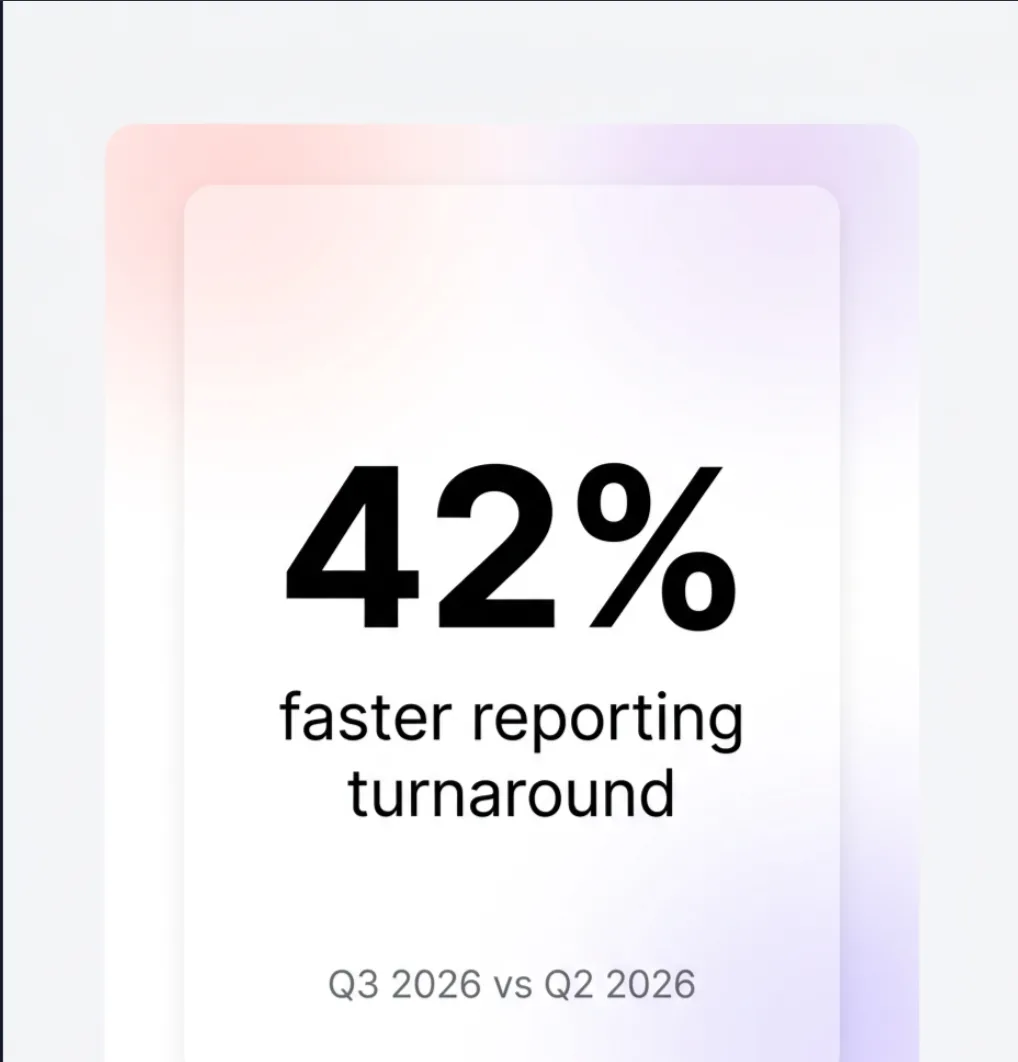
Recorded fictional sample from the documented run; verify the metric and review every new output independently.
Compare models with the same brief
The recorded 42% sample above illustrates one template run. To evaluate another model, keep the content type, exact field values, platform preset, and brand-guidelines setting unchanged. Record the selected model, credit quote, and output for each run.
Compare the rendered number, label, context, and crop against the same approved brief. A different model may produce a different layout even with identical inputs. Keep both results so your team can judge the tradeoff; one successful image does not establish repeatability.
For a metric-specific review, use the stat-card checklist. It explains units, comparison periods, and the difference between percentages and percentage points. If your request does not fit the existing fields, the template versus freeform comparison helps choose a starting point.
How GPT Image 2 changes templates
GPT Image 2 can be evaluated for text-led templates such as stat values, event dates, offer lines, UI labels, packaging text, and step labels. Exact text is still not guaranteed and must be checked.
That does not mean templates should collect more copy. It means templates should collect shorter, more exact copy.
When building or editing a template for GPT Image 2:
- keep each rendered text field short enough to fit without shrinking
- wrap exact copy in quotes inside the prompt template
- name where the text appears, such as upper third, lower-left, centered, or inside a badge
- specify the typography role, such as headline, supporting line, caption, or label
- add constraints that block extra words, duplicate text, hallucinated logos, and decorative fine print
Example template language:
Hero headline: "{{headline}}" rendered exactly once in bold geometric sans-serif type, upper-left.
Supporting line: "{{supporting_line}}" directly beneath at one-third the headline size.
Constraints: render quoted text verbatim, no extra words, no duplicate text, no fake logos, no watermark.
For image-editing templates, use a preserve block:
Change: {{change_request}}.
Preserve: product geometry, visible text, camera angle, crop, lighting, and layout from the reference image.
Constraints: no redesign, no added claims, no logo drift, no watermark.
The template supplies constraints even when the operator input is short; it does not guarantee compliance with them.
Template-first recommendations
- Start with the assets your customer already makes manually every week
- Pair each template with one default preset and one fallback preset
- Keep field instructions literal so operators know what evidence and copy to provide
- Use freeform image mode only when the request no longer fits a repeatable pattern
What to read next
- Getting Started for the full default widget flow
- Image Generation for open-ended visual requests
- Branding & Guidelines for finishing template outputs with overlays and logos
- GPT Image 2 Playbook for prompt patterns you can turn into fields