Three Fictional Freeform Image Briefs
Three recorded synthetic examples for structuring a freeform image request without promising repeatable output.
Fictional examples: The scenes, people, products, and use cases below are synthetic teaching material. They are not customer work or evidence of output quality, speed, or repeatability.
Preset content types cover defined formats such as Product Photo, Announcement, and Quote Card. General mode leaves the brief open for a different composition.
That’s what the General preset is for. No structured fields. Just a text box and whatever you can describe.
Here are three recorded prompt-and-output pairs. The prompt is shown as entered; a new run can produce a different result.
Example 1: Blog Hero Image
You’re writing a blog post about the future of remote work and need a header image. Here’s the prompt:
An aerial view of a modern co-working space with people working at laptops, warm natural light streaming through floor-to-ceiling windows, lush green plants throughout, minimalist Scandinavian furniture in light oak and white. Professional editorial photography style, shallow depth of field, warm golden-hour color grading.

What makes this work:
- Subject first: “aerial view of a modern co-working space” – the AI knows what to build before anything else
- Specific details: “floor-to-ceiling windows,” “light oak and white,” “lush green plants” – each detail steers the output away from generic results
- Photography direction: “editorial photography style, shallow depth of field, warm golden-hour color grading” describes the intended camera treatment without referencing another publisher’s style
Example 2: Abstract Brand Background
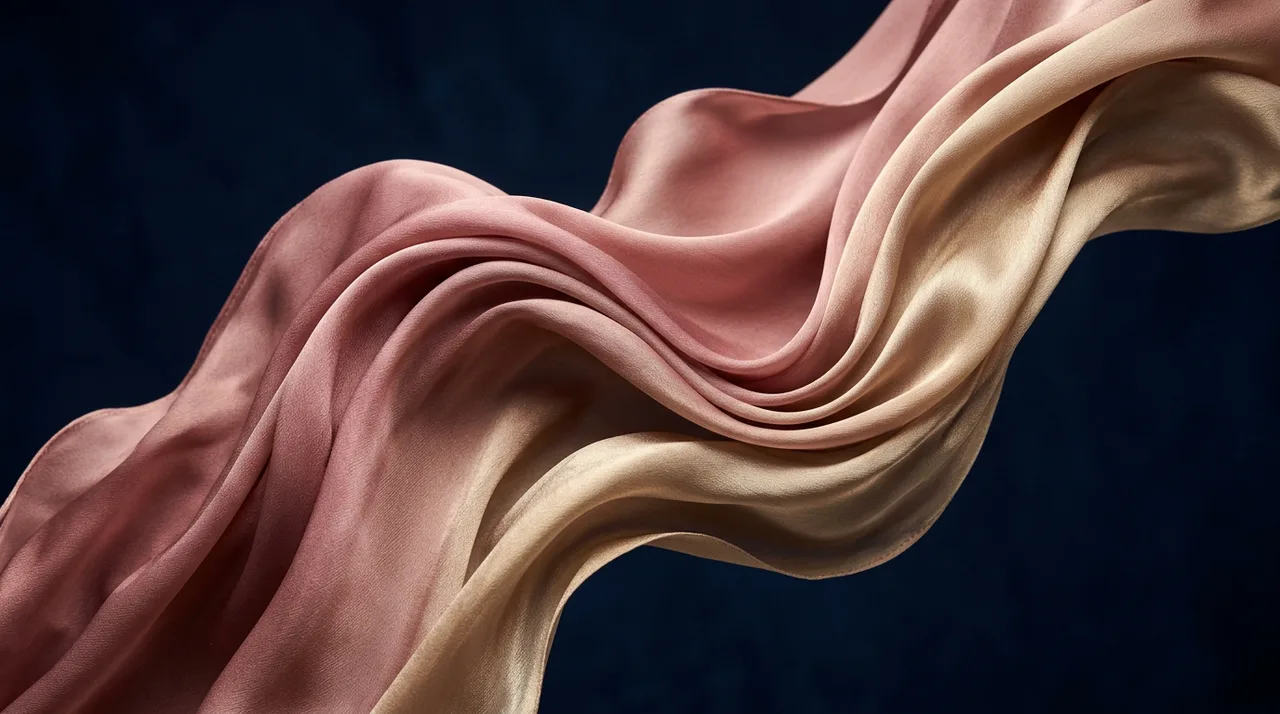
Your landing page needs a premium-feeling background texture. Stock photos look generic. Custom photography is overkill for a background. Here’s the prompt:
Abstract flowing silk fabric in soft gradients of dusty rose and champagne gold, floating weightlessly against a deep navy background. Macro photography perspective, dramatic studio lighting creating rich highlights and deep shadows on the folds. Luxurious, high-fashion editorial quality.
What makes this work:
- Material, not concept: describing “flowing silk fabric” gives the model a physical subject instead of the abstract request “make something elegant”
- Color precision: “dusty rose and champagne gold against deep navy” – three specific colors, not “warm colors” or “elegant palette”
- Camera language: “macro photography perspective, dramatic studio lighting” – telling the AI how to photograph the subject, not just what the subject is
- Mood anchor: “luxurious, high-fashion editorial quality” – sets the bar for refinement
Example 3: Creative Concept
You need a social media image that stops the scroll – something clever, unexpected, and shareable. Here’s the prompt:
A tiny astronaut sitting on the edge of a coffee cup, legs dangling over the rim, looking up at a swirling galaxy of cream in the dark coffee below. Warm kitchen morning light from a nearby window. Photorealistic detail at miniature scale. Whimsical, imaginative, cozy atmosphere. Shallow depth of field with the astronaut in sharp focus.

What makes this work:
- Surreal concept, concrete details: “tiny astronaut sitting on the edge of a coffee cup, legs dangling” – the concept is fantastical but the physical description is precise enough for the AI to compose
- Scale anchoring: “miniature scale” and “on the edge of a coffee cup” tell the AI exactly how large the astronaut is relative to the environment
- Emotional direction: “whimsical, imaginative, cozy” – three words that completely change the mood compared to, say, “epic, dramatic, cinematic”
- Focus control: “shallow depth of field with the astronaut in sharp focus” – directs attention to the subject
The Prompt Structure
One practical prompt structure is:
- Subject – what is in the image (a co-working space, silk fabric, a tiny astronaut)
- Details – specific visual elements that prevent generic results (Scandinavian furniture, dusty rose gradients, legs dangling over the rim)
- Camera / Style – how it’s photographed or rendered (editorial photography, macro perspective, shallow depth of field)
- Mood – the emotional quality (warm, luxurious, whimsical)
When a layer is omitted, the model decides more of the result. That may or may not fit the intended use.
What Changes with GPT Image 2
For GPT Image 2, use a structured prompt when the image contains approved text, product details, UI, or a requested edit boundary.
Use this structure when the stakes are higher:
Scene:
Where the image exists.

Subject:
The main object, person, product, or screen.

Important details:
Materials, texture, camera angle, lighting, composition, exact text, and mood.

Use case:
Product mockup, social ad, UI screen, infographic, poster, or editorial photo.

Constraints:
What must not appear, and what must stay unchanged.
For text inside the image, quote the copy and treat it like typography:
Headline text (EXACT TEXT):
"Fresh and clean"

Typography:
Bold sans-serif, centered, high contrast, readable from a distance.

Constraints:
Render the text verbatim. No extra words. No duplicate text. No watermark.
For edits, do not ask for a vague improvement. Split the prompt into what changes and what stays locked:
Change:
Replace the background with a clean pale stone studio surface.

Preserve:
Keep the product shape, label text, cap, camera angle, crop, and main shadow direction exactly the same.

Constraints:
Do not redesign the packaging. Do not add props. No watermark.
These instructions define intent but do not guarantee exact text or preservation. Compare the result with the source.
Compare models without rewriting the example
The three examples above should stay as the original freeform baseline. They show what a normal General-mode prompt can produce and should not be replaced when a newer model ships.
For GPT Image 2, add a separately labeled comparison when the asset includes:
- short exact text in the image
- product or packaging labels
- app UI copy
- infographic labels
- reference-image edits where the product, face, or layout must stay stable
When documenting a GPT Image 2 result, include the exact generation context next to the image:
Mode: Image
Content type: General
Platform preset: X / Twitter (16:9)
Model: GPT Image 2
Apply brand guidelines: Off
Prompt: [the exact prompt used]
That records the context needed for a reviewable comparison. Exact availability and credits come from the current selector and pre-submit quote.
Common Mistakes
Too vague: “A nice office” – the AI has no idea what “nice” means to you.
Too long: More words do not guarantee a better result. Keep instructions relevant to the visual decision.
Style-blind: “A coffee cup on a desk” could be interpreted as a photo, watercolor, 3D render, or pencil sketch. Name the intended medium.
Mood-blind: “A forest” and “a quiet forest at dawn with mist between the birch trees” produce wildly different results. Mood words (cozy, dramatic, serene, eerie) are cheap and powerful.
Unquoted text: “make a poster that says summer sale” is weaker than Headline reads "SUMMER SALE" in large white sans-serif type. Quote exact copy, then specify placement and style.
Overloaded revisions: “make it more premium, fix the text, change the background, and keep everything” creates drift. Make one revision at a time and restate what must stay unchanged.
When to Use Freeform vs. Templates
Reach for the General preset when:
- Your image doesn’t fit any existing content type
- You need a one-off creative composition
- You want to experiment with artistic styles
- You’re creating abstract or conceptual visuals
Stick with templates when:
- You’re making a stat graphic, quote card, or announcement (the template knows the format)
- You want operators to provide the same required fields
- You’re attaching saved brand context, while accepting that generated output can still drift
Start Creating
The public Playground lets you inspect the interface without submitting a production generation. Authenticated workspace generation is available only when the current entitlement and billing controls admit the request.
For more structured examples, read the GPT Image 2 Playbook next.